Mobile Banking Quick Links
Mobile Banking
With the 21st Century Bank mobile banking app, you can deposit checks straight from your phone.

Now you can use your phone to deposit checks into your 21st Century Bank account - anywhere, anytime.
Your mobile phone is pretty amazing. You can use it to do so many things, including your banking.
And now, with 21st Century Bank’s mobile banking app, you can use your phone to quickly, easily, and securely deposit checks right into your account. Every transaction is:
QUICK – Just sign, tap, and submit
EASY – A few simple steps and your deposit is on its way
SECURE – Your deposits are password protected and encrypted
Best of all, you won’t have to waste time traveling all over town just to deposit a check.

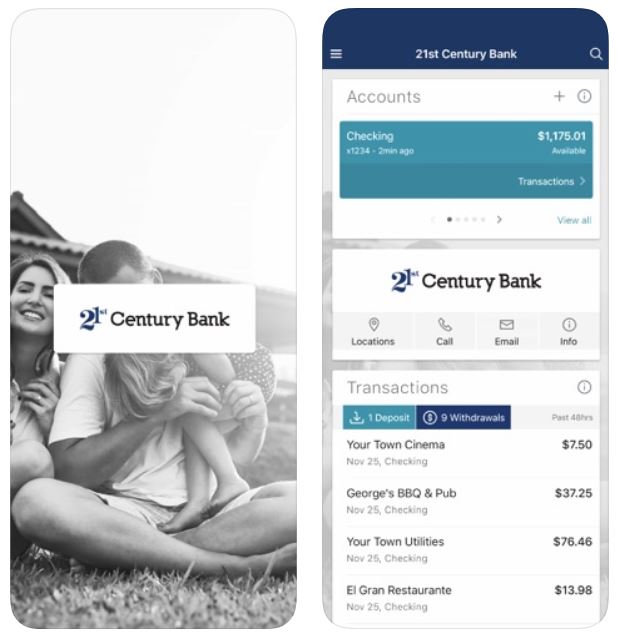
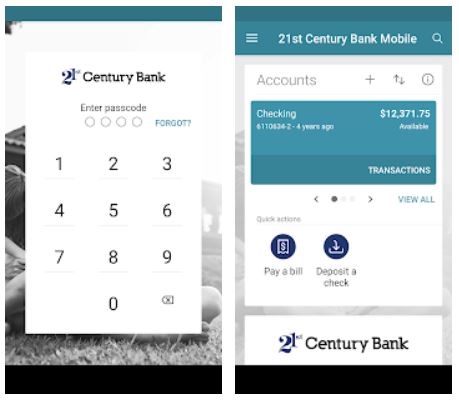
21st Century Bank's mobile banking app lets you:
- Manage your bills. You can add payees, view all your upcoming bills, make payments and access your payment history.
- View transactions. Track, view and search for transactions; add a note or an image; and filter by tags anytime and anywhere.
- Make transfers. With the 21st Century Bank mobile banking app, you can easily and securely initiate one-time, future date or repeating transfers between your accounts at 21st Century Bank.
- Remote Deposit Anywhere lets you securely deposit checks anywhere you have a Wi-Fi or Internet connection using just your mobile device.
- Get notifications when deposits and payments are made, when transfers go through or when your account balance is low.
Are there any requirements to use the app?
In order to use the 21st Century Bank mobile app:
- You must be enrolled in Online Banking
- You must have: Apple iPhone® with iOS 17.0 or above or Android™ 8.0 or above
Once you’ve downloaded the app, just follow these simple steps:
- Touch the app icon on your home screen.
- Enroll as a first-time user or enter your online banking credentials to log in.
- For additional security, you will also be asked to create a four-digit code. In addition, you’ll have the option to enable fingerprint recognition authentication if your device supports these capabilities.
To get started, download the 21st Century Bank mobile banking app from the App Store or Google Play.



21st Century Bank Debit Cards & Mobile Wallets
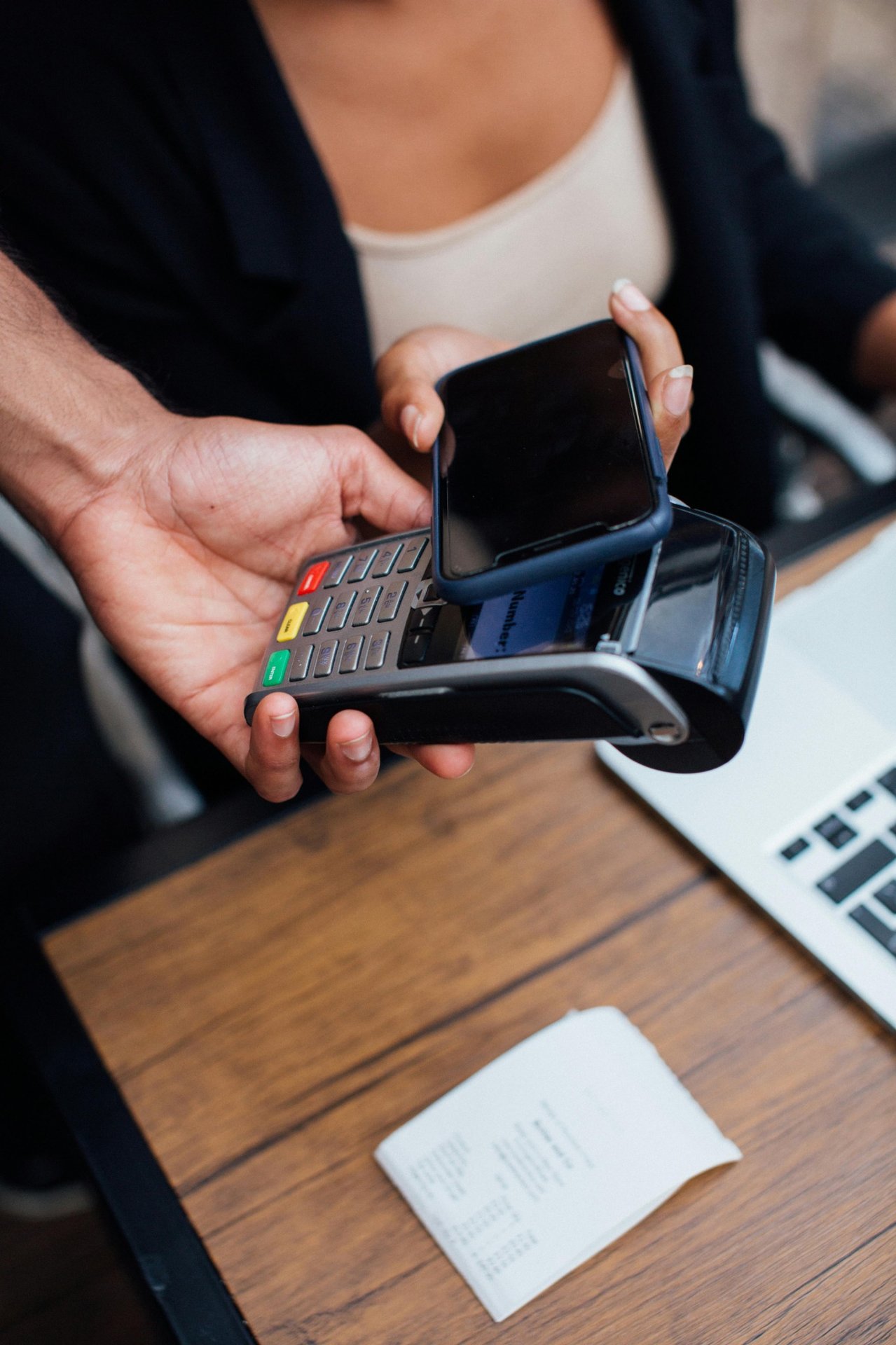
Now you can make purchases without even taking your 21st Century Bank debit card out of your wallet. All you need to do is add your card to a Google Pay or Apple Pay digital wallet.
The best part is you can do this directly from the 21st Century Bank Mobile Banking app.
Simplify & Secure Transactions –
- Use your iOS or Android device with compatible terminals to make in-store purchases.
- Streamline purchases in mobile apps without needing to enter your card information.
- Mobile Wallets use unique codes with the highest level of encryption to complete purchases, rather than your actual account numbers.
How does this all work:
- Download the Apple Pay or Google Pay wallet and set up your Mobile Wallet.
- Open the 21st Century Bank Mobile Banking app, go to “Card Management” and select your debit card. Then tap “Add to” Apple or Google Wallet and follow the on-screen instructions to add your card to your Mobile Wallet.
- When it is time to complete a purchase at a participating merchant, open the Mobile Wallet app and choose your 21st Century Bank Debit card. Hold your mobile device over the Tap to Pay compatible terminal to authorize the transaction.